

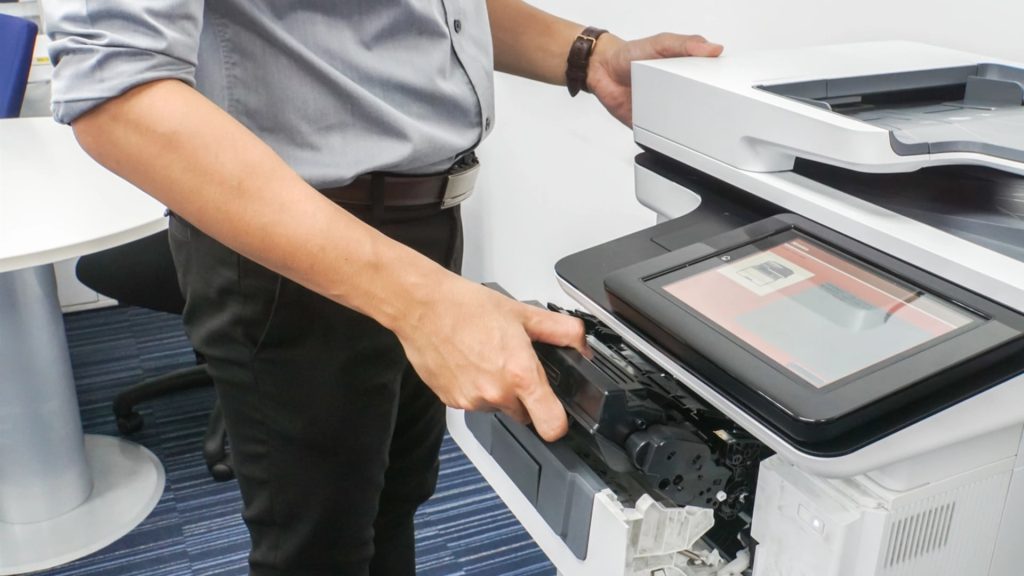
Printers make everyday printing tasks easier at home and in the office, but setup errors and unexpected technical problems can interrupt your workflow. Issues such as failed connections, outdated drivers, incorrect settings, and unresponsive devices are common across different printer brands. Understanding the possible causes can help you identify the right solution and restore normal printing without unnecessary delays.
Common Causes of Printer Setup and Printing Problems
Printer problems can occur during initial installation or after a device has been working normally for some time. Identifying the symptoms is the first step toward finding an effective solution.
Some common causes include:
- Outdated, missing, or incompatible printer drivers
- Incorrect Wi-Fi or USB connection settings
- Paper jams or incorrectly loaded paper
- Low toner levels or cartridge-related issues
- Print jobs stuck in the computer’s print queue
- Incorrect printer selection or offline status
Checking these factors can often resolve basic problems without professional assistance.
How to Resolve a Lexmark Printer Setup Issue
A Lexmark printer setup issue may occur when installing a new printer, connecting it to a wireless network, or configuring it on a computer. In some cases, the installation process may fail because the required software is missing or the printer cannot establish a connection.
Start by checking that the printer is powered on and that all cables are securely connected. If you are setting up a wireless model, confirm that the printer and computer are connected to the appropriate network. Follow the instructions provided for your specific Lexmark model.
Next, install the correct printer driver using the official Lexmark support website. Selecting the wrong model or an incompatible operating system version can prevent the printer from functioning correctly. If the device was previously installed, removing the old printer entry and reinstalling it may help resolve configuration conflicts.
If the printer is not detected during setup, restart the printer and computer, then repeat the connection process. For USB connections, try another compatible port or cable if available. For wireless connections, check the network settings and ensure that the printer has successfully joined the network.
If the setup problem continues, consult the model-specific troubleshooting guide or contact a qualified technician for further assistance.
What to Do When a Samsung Printer Is Not Working
When a Samsung printer is not working, the cause may be related to connectivity, software, paper handling, or toner. Begin by checking the printer’s display panel for warning messages or error codes, if available.
If the printer does not respond to print commands, verify that it is powered on and connected to the computer or network. Open your computer’s printer settings and make sure the correct device is selected as the default printer when appropriate.
A stuck print queue can also prevent new documents from printing. Cancel pending jobs, clear any errors, and try printing a test page. If the printer appears offline, check its connection and status before sending another document.
Driver problems may occur after an operating system update or software change. Samsung-branded printers may use HP support resources, depending on the model. Check the official HP support website for the appropriate driver, software, and troubleshooting instructions.
For paper jams, carefully remove accessible paper according to the manufacturer’s guidance. If pages are blank or print quality is poor, check the toner cartridge, paper settings, and any relevant maintenance messages. Avoid forcing open components or attempting repairs that require specialized knowledge.
When to Seek Professional Printer Support
Basic troubleshooting is often enough to fix minor setup and printing issues. However, repeated connection failures, persistent error codes, unusual noises, or suspected hardware damage may require professional help.
A qualified technician can inspect the printer, identify software or hardware faults, and recommend an appropriate repair. Before contacting support, note the printer’s model number, error message, and troubleshooting steps already attempted. This information can help speed up the diagnosis.
Tips to Prevent Future Printer Problems
Regular maintenance can help keep your printer operating reliably. Keep drivers and firmware updated through official support channels, use compatible paper and toner, and avoid overloading the paper tray. For wireless printers, maintain a stable network connection and periodically verify the printer’s connection settings.
It is also useful to print a test page after installing new drivers or changing network settings. This simple check can help identify configuration problems before they affect important documents.
Conclusion
Printer setup and performance issues can be frustrating, but a systematic approach can help identify the cause. Whether you are dealing with a Lexmark printer setup issue or a Samsung printer not working, checking connections, installing the correct drivers, clearing print queues, and reviewing error messages are practical first steps. If the problem persists after these checks, consult the manufacturer’s support resources or seek professional assistance to restore reliable printing.